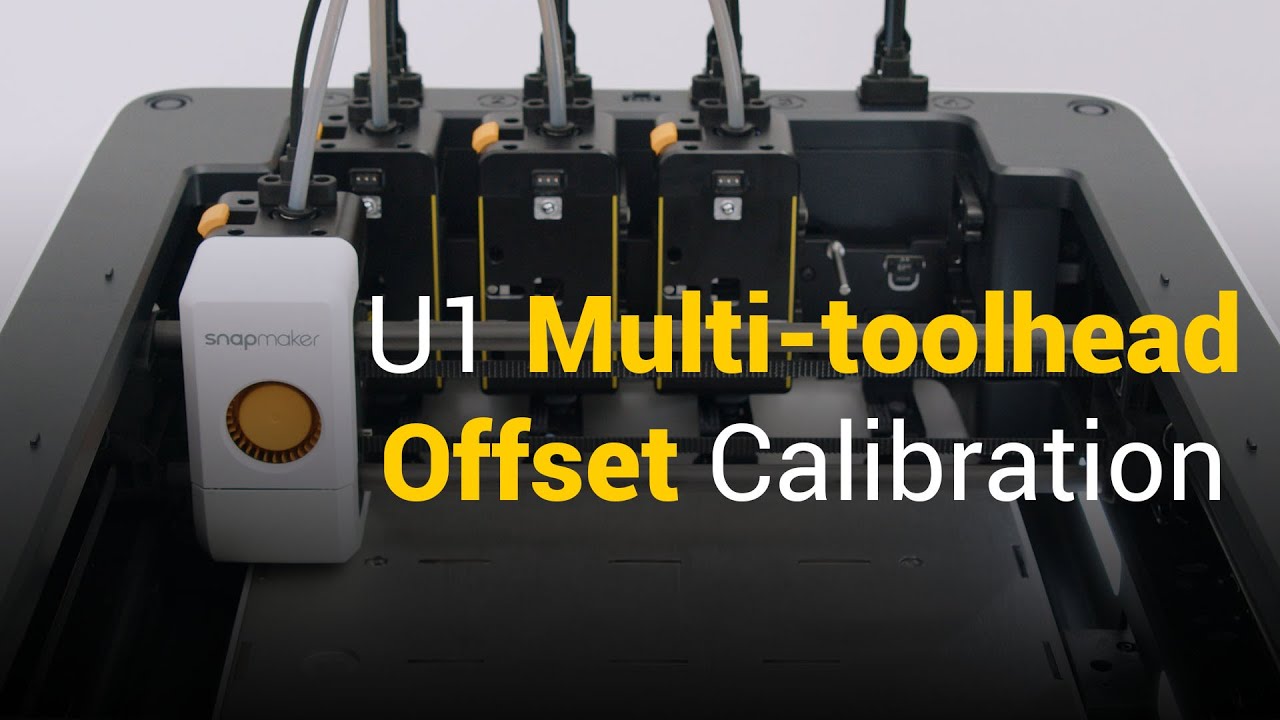
We’ve put together a full video that walks you through the calibration process on U1. The video is real-time with original audio (only the intro & outro are edited), so you’ll see exactly how it works in practice.
Multi-toolhead offset calibration is recommended when:
You’re setting up the machine for the first time
The hot end has been replaced
The nozzle scrapes or collides with components such as the heated bed
Layer shifting occurs during multi-toolhead printing
The process takes around 15 to 20 minutes. Once done, you won’t need to repeat it for every print.
When the print head moves suddenly, inertia can cause vibrations that leave wave‑like patterns (ringing/ghosting) on your prints. U1’s Input Shaping reduces these vibrations for smoother curves and cleaner edges.
How to run:
On the touchscreen, go to Settings > Maintenance > Device Calibration
Check Vibration Compensation and tap Start
During calibration, the print head is swept through a range of frequencies, and the resonance (vibration energy) at each frequency is measured. After the sweep, the data is analyzed with the input shaper algorithm to determine the frequency setting that minimizes the resonance.
Once calculation is done, tap OK
The whole process will take about 5 minutes, and you don’t need to repeat it for every print.
Snapmaker U1 uses Pressure Advance to fine-tune extrusion as print speed changes. This reduces over- and under-extrusion, making prints cleaner and more accurate, especially on fast or detailed models.
Fully automatic calibration, no manual intervention needed:
On the touchscreen, tap Start, then Next.
In Print Preferences, tick Dynamic Flow Calibration and tap Print.
U1 extrudes a set amount of filament and automatically calculates the optimal compensation using its high-precision sensor.
The calibration takes about 15 minutes. Once complete, you don’t need to repeat it before every print. The machine runs the process automatically and starts printing when complete.
Hello! Thank you for the video tutorials. I would like to see a video on troubleshooting the most common problems and especially “spaghetti failure.” Could you include tips on how to prevent it and how to fix it if it occurs?
Thank you for your suggestion, Darik! I’ve passed your request along to the team. If there are any plans to create a video on this in the future, I’ll be sure to share it in the community.
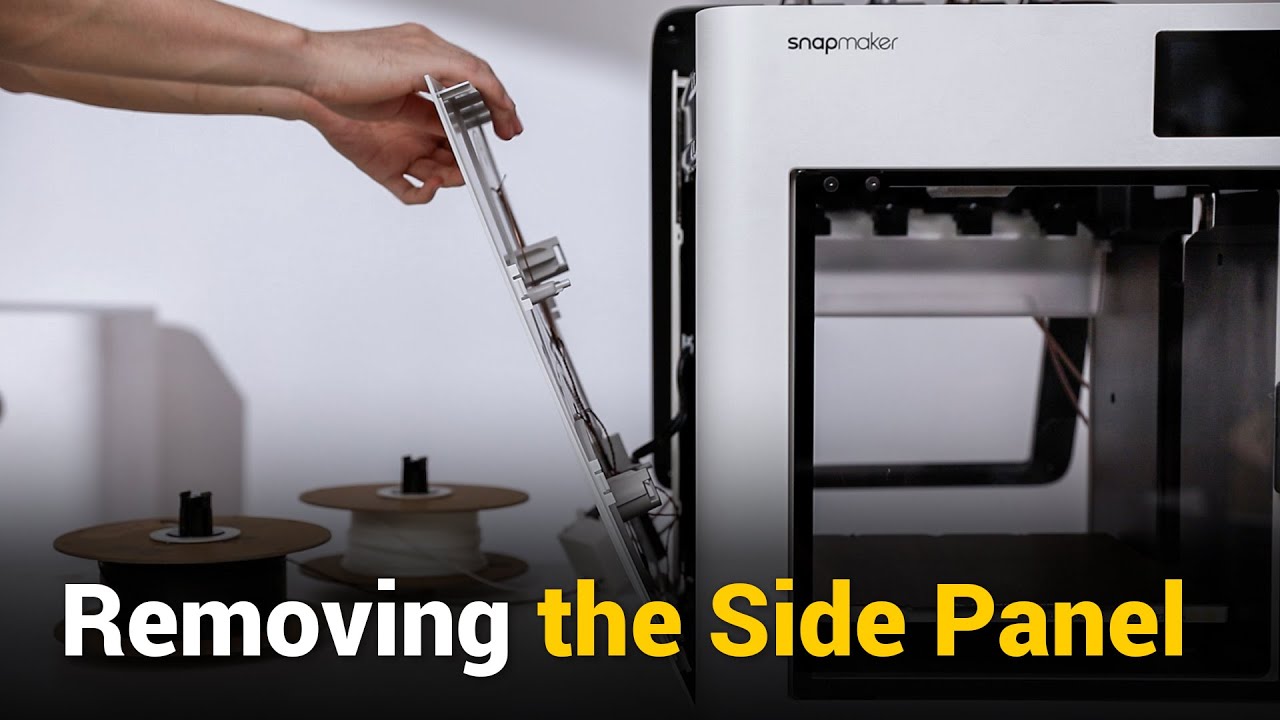
This video is not a step-by-step part replacement tutorial, but rather a complete teardown of the U1 toolhead. The goal is to give you a clear look at:
How the toolhead is structured inside.
What the actual disassembly difficulty looks like.
Why the toolhead is designed with repairability in mind.
For everyday use, you won’t need to go through such a deep disassembly. But for those interested in understanding the internal design, or considering future maintenance, this video will give you a full picture.
Having only one box connection per side isn’t a very comfortable design, it feels like it’s asking for more convenient implementation.
Also, I have a question. How long does the silica gel desiccant last, and how can I understand when it needs to be replaced?
Thank you.
For what it’s worth, I needed to dry dessicant for all 4 boxes I now have (recently added 3 more).
I poured all of it into a little flat tray that fit nicely in a Snapdryer box. It took about 24 hours on max heat to pretty well recharge them, though I shook the tray gently now and then to mix it up.
In the past when I’m in a hurry, I’ve done it at 10-20% power in the microwave for maybe 10 minutes+. This also works, though I don’t actually recommend drying printing dessicant in anything you would cook food in. (I think 10% is recommended so 20 is pushing it.)
Now it’s in a sealed bag until next time.
As for how long a charge lasts, that depends a lot how much moisture you expose it to. If you leave it out, it might darken in just 1-3 days depending on humidity. Or if you frequently open/close the box. It can last well longer if it’s shoved straight into the box and sealed without opening, or with heat on.
We’ve released a new video showing how the Toolhead PCB can be replaced on the Snapmaker U1.
When to Replace:
Replace the Toolhead PCB if it is damaged or not functioning properly. The PCB integrates pogo pins, each rated for 250,000 swaps. If the pogo pins wear out, replacing the PCB also replaces them.
The video covers:
Part 1: Remove the Toolhead
Part 2: Replace the Toolhead PCB
Part 3: Restore the Toolhead
Watch the full video to follow along, and feel free to drop any questions in the comments!
We’ve released a new video showing how to replace the Toolhead Cable on the Snapmaker U1.
Watch the full video here:
What the video covers:
Power off and safely remove the old toolhead cable
Install the new cable correctly and secure it (Do not use an electric screwdriver)
Key tips to avoid mistakes, including screw lengths, cable routing, and tightening torque
Why this guide is important:
The connector housing is made of soft plastic, so please handle it with care. Over-tightening the screws may damage the threads or even internal components.
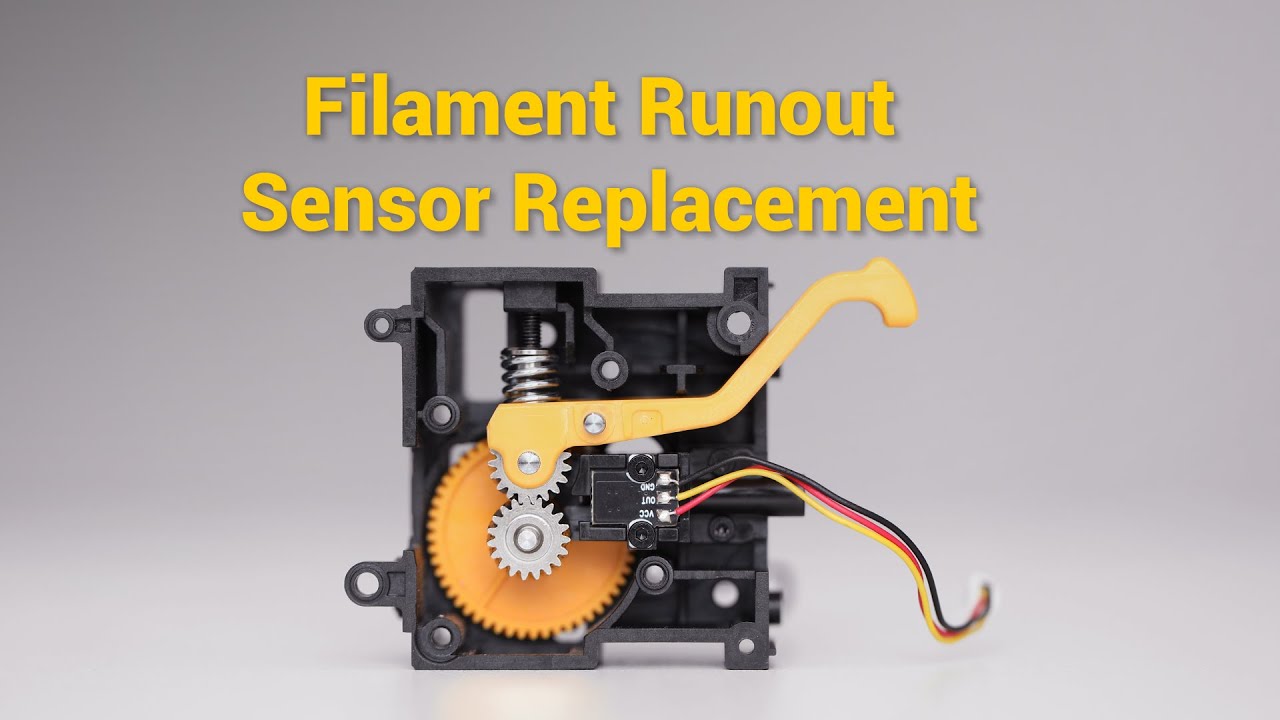
U1 Video Guide: Filament Runout Sensor Replacement
Hi U1 Community,
We’ve released a new video showing how to replace the Filament Runout Sensor on the Snapmaker U1. If the screen still shows No Filament after loading, or Loaded after unloading, the filament runout sensor is likely faulty and needs to be replaced.
What the video covers:
Part 1: Removing the toolhead (unloading filament and detaching the toolhead).
Part 2: Replacing the filament runout sensor (removing the extruder unit).
Part 3: Restoring the toolhead (reassembling and parking it).
Watch the full video to follow along, and feel free to ask any questions in the comments!
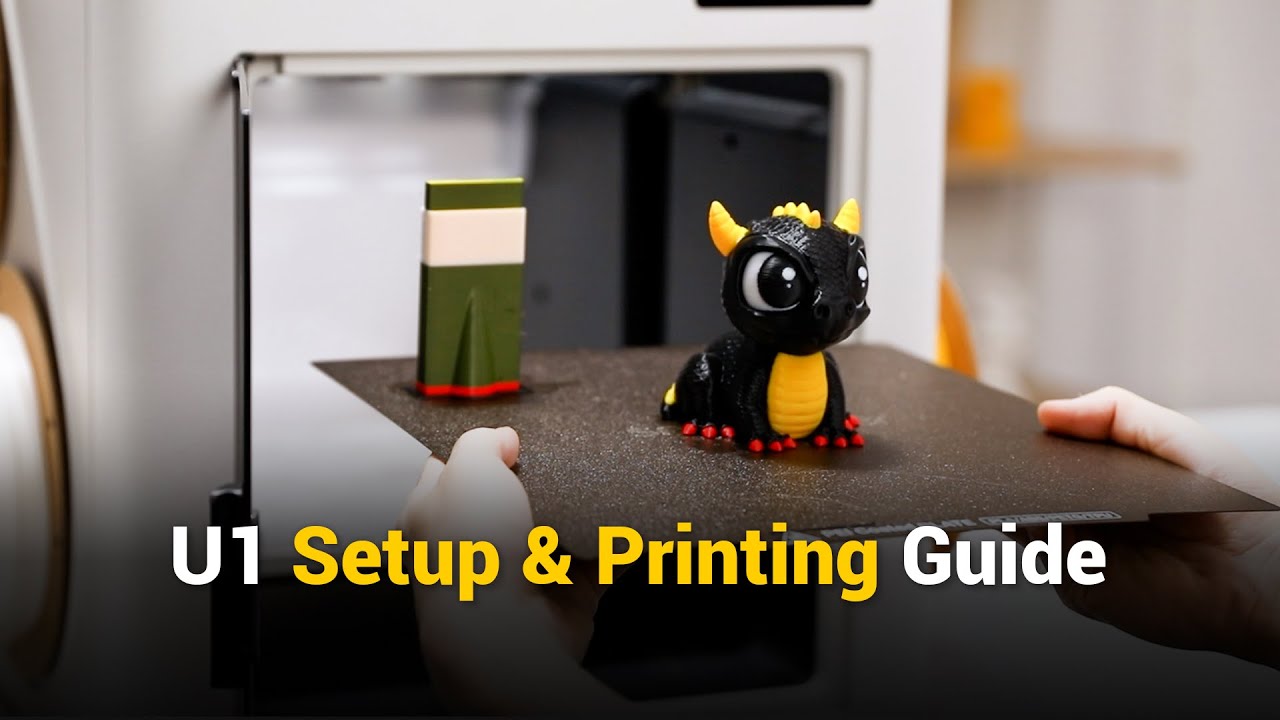
We’ve prepared a video guide to help you get started with your Snapmaker U1. The tutorial covers the key steps from unboxing to your first print, including:



 Watch the full video here:
 U1 Accessories Pre-order: