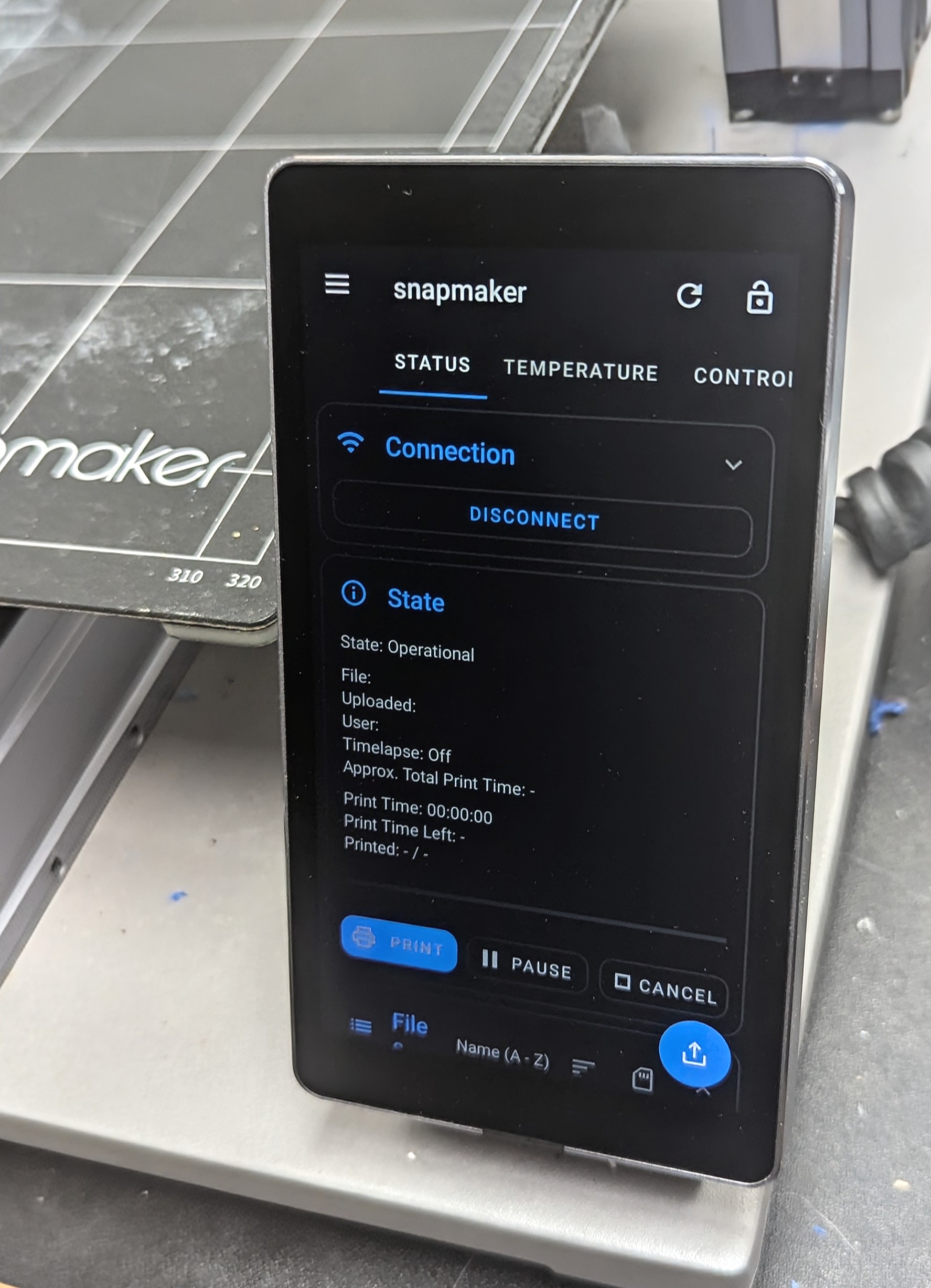
I’ve been experimenting with getting an OctoPrint UI displayed directly on the Snapmaker 2.0’s touchscreen, and I’ve finally figured out a working method. Since the Snapmaker screen runs on Android, it’s possible to install Android apps.
I tried several OctoPrint companion apps. Here’s a breakdown of what I tried and what worked best for me:
Octoremote: This app works well, though I had some initial setup challenges, and I don’t like the dashboard page.
Octoapp: This would have been my top choice, but unfortunately, it’s incompatible with the touchscreen.
Obico: This app works well, but it doesn’t immediately direct you to the printer’s dashboard upon opening.
Prindoit Lite: This app crashed immediately upon launch.
RC Octoprint: While it works, I found it to be very slow and laggy.
Firefox Focus + Touch UI: I was able to get Firefox Focus to work (it was the only browser that would load), but it was laggy and would randomly reload pages. The Touch UI for OctoPrint also didn’t display very well on the screen.
Connect a USB hub to the USB-A port on the screen (the same port you use for a USB drive).
Plug a USB keyboard and a USB drive (with the F-Droid Repository APK on it) into the hub.
On the keyboard, press Meta (WIN/MENU) + N to open the notification bar.
Use the TAB key to navigate to the gear icon (Settings) and press Enter.
In Settings, go to “Storage.”
Select your USB drive, which should appear in the list.
Find and select the F-Droid.apk file.
The system will warn you about installing from unknown sources. Grant permission.
Once F-Droid is installed, hit “OPEN.” Don’t close the app.
From within F-Droid, install these three apps:
Pie Launcher
Aura Store
Launch on Boot
Navigate to Settings > Apps > … (menu in the top right) > Default apps > Home app.
Select Pie Launcher as your default home app.
Press the Meta key to open the app menu.
Select Aura Store.
Search for and install OctoRemote.
Follow the setup instructions for OctoRemote.
Open Launch on Boot, enable it, and select OctoRemote to have it automatically launch on startup.
Important Note for OctoRemote Setup:
When setting up OctoRemote, you’ll need your OctoPrint API key. To get this, I recommend installing Firefox Focus (the only browser I could get to work) from Aura Store and navigating to your OctoPrint instance. From there, you can go into Settings > API > Reveal API key.
Let me know if you have any questions or alternative app suggestions.
This really amazing (if it works correctly as I have yet to try it). My question is, can / how do you go back to using the default Snapmaker interface? I do find it convenient to sometimes just fire up the machine and use the built in storage for my saved gcode files to just print a file that I have used several times. Also, the instructions you posted for “steps you followed:” As in #1, you said connect a USB hub to the USB-A port on the “screen”? are talking about a USB-A on the RPi? or the Snapmaker control hub? I’m assuming the RPi (as the Snapmaker doesn’t have a USB-A for the screen, only a USB-A meant for thumbdrive for files?) I’m a little confused.