Someone sent a message on discord that they had some trouble figuring out how to use the app, so I wrote a short guide, which I’ll repost here.
How to use https://gradients.garden:
If you want to create vertical gradients like these, just use the top sections of the app (not the horizontal gradients / G-code modifier section):
(model in photo is Tucano_brazilian bird by William_Additive on Thingiverse / CC BY 4.0)
The gradient lines are shown harshly in the preview so you can see the results in detail, but when printed at 0.08mm layer height the filaments will blend together, which is the core idea of ratdoux’s full spectrum orcaslicer fork (related: see Wombley’s great videos https://www.youtube.com/watch?v=uE1Su-FUvls and https://www.youtube.com/watch?v=tKfpaVk8jEw for a exploration of what filament types to use and how to get the best layer mixing).
To create these kind of gradients, first you need to set your filament colors at the top of the page. You can either do this by using the color picker, or by clicking the magnifying glass icon on each slot to search for a real filament (data from filamentcolors.xyz). Set all the filaments you are going to be using in the gradient, and make sure they are in the same slot you are loading them in your machine.
After that you can skip past the blend color creator and 3D preview for now, go down to the gradient creator. Here, by default, it will have a smooth gradient between two filaments (the left side will be the base of the object).
You can change the filaments at each point in the gradient, and add extra colors to the gradient to create multi-color transitions (like the 3d preview earlier in this post).
To customize the gradient further you can drag the hollow circular nodes on the gradient display to move the position of each color within the gradient. The handle to the right of each node controls the transition speed between colors, drag the white handle down on the cyan node for example to make the gradient mostly cyan and only reach magenta near the end.
While you’re doing this you can use the 3D preview to see how the gradient will look on a real object. You can upload your own 3d model/3mf file to get a better idea of how the gradient will look when printed.
Then when you’re happy with the gradient you have created, go down to the Gradient Output Code panel (you’ll want to leave the dithering strategy panel set to its default unless you’re experimenting).
Here in the output panel you can set how long the dithered output pattern should be. Either type in the height of your model and the layer height you’re printing with and it will calculate how long the output code should be, or you can click ‘Layer count’ and type it in manually (if you know how many layers your model has from your slicer).
Alternatively if you imported your 3D model/3mf in the 3D preview panel you can click ‘Set output to fit model height’ there, and it will calculate the code output length automatically (assuming you’ve still set the layer height you’re printing with in the output panel).
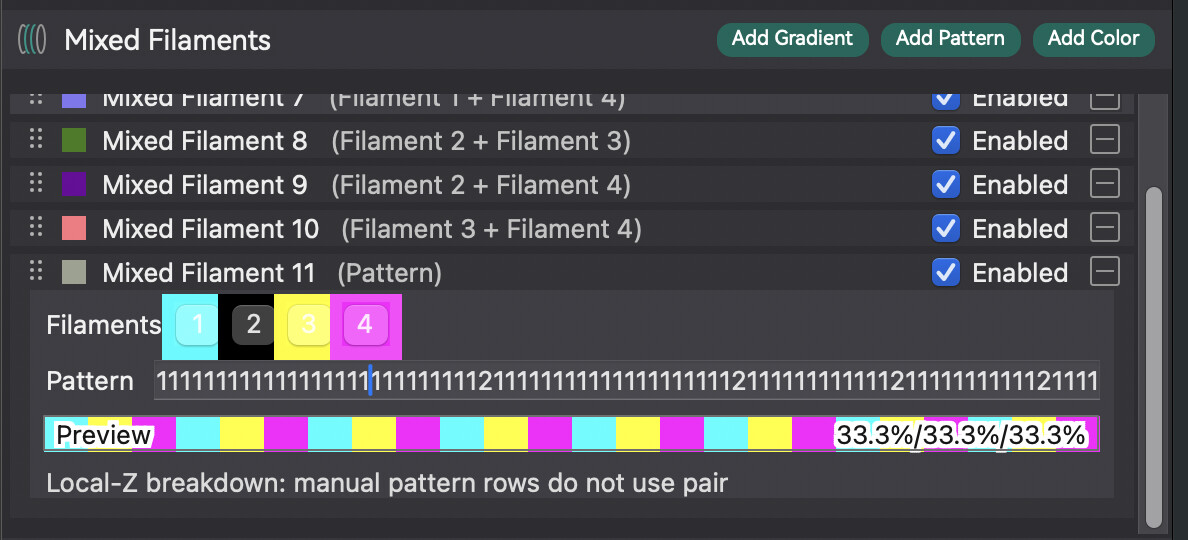
Next you can click ‘Copy to Clipboard’ and bring this code into ratdoux’s Full Spectrum fork of Orca Slicer. In the ‘Mixed Filaments’ section first click ‘Add Pattern’ to create a pattern filament. Then click on the new pattern filament to expand it, and paste the output code into the ‘Pattern’ field.
Now you can assign the gradient filament to your model the same way you would any other filament. Either paint it on, remap an existing color, or right click an object and click ‘Change Filament’ in the dropdown menu if you want to color the whole object. You can use as many gradients in the same object/print as you like.
There are also some extra options around the UI you can play with to get slightly different results. For example the ‘repeats’ option in the Gradient Creator allows you to loop the gradient pattern multiple times in the same output length (and the ‘flip repeats’ checkbox will mirror each repeated gradient). ‘Reverse’ in the output panel flips the code, you could use that if you wanted to have the same gradient twice in a print but flipped vertically.
=== Advanced/2D gradients: ===
The horizontal gradient creator / G-code modifier is experimental and allows creating left-right gradients and even 2d gradients by offsetting each toolhead by a dynamic amount depending on the Z position in the model. The G-code 3d preview in this panel isn’t as good here due to the way the extrusion is rendered in the browser - it’s better if you export the G-code and preview it in your slicer to see the results more clearly (to see a little better in the browser you can drag the camera angle and zoom in/out until you can see more colors).
To use this you first have to slice a model in ratdoux’s full spectrum orcaslicer fork, by creating a Mixed Filament pattern like above, but instead of using a long code like with vertical gradients just enter the indexes of the filaments you want to use (i.e. 123 for the first 3 filaments you have loaded, or 12 for the first two). Slice the model, then click the arrow next to ‘Print’ and export the G-code instead. Click ‘Load G-code’ in this panel to import your model.
I might write a more detailed explanation of every option in this panel later, but for now a quick overview. If rotation is off, the offset will be fixed in the direction you specify (creating a static horizontal gradient, and no vertical gradient). If rotation is enabled, the offset will rotate the number of times you specify from the base of the model to the top, so 2 will rotate twice and reach the original offset at the top again. This will create a 2d gradient effect, with gradients in both horizontal and vertical directions simultaneously (like in this screenshot).
If you are making a two color gradient you only have to set an offset distance for a single toolhead and can ignore the angle offset, etc. If you want to make a three-color gradient you can copy the parameters from the screenshot above, it just sets each CMY toolhead to be offset at an equal angle from each other (at 0, 120, and 240 degrees from the X axis) and then rotates this gradient 1.5 times over the model height.
You can also use the ‘fade’ option to fade in and out this effect over the height of the model, for example having a gradient that slowly emerges from a solid color at the base of the model.