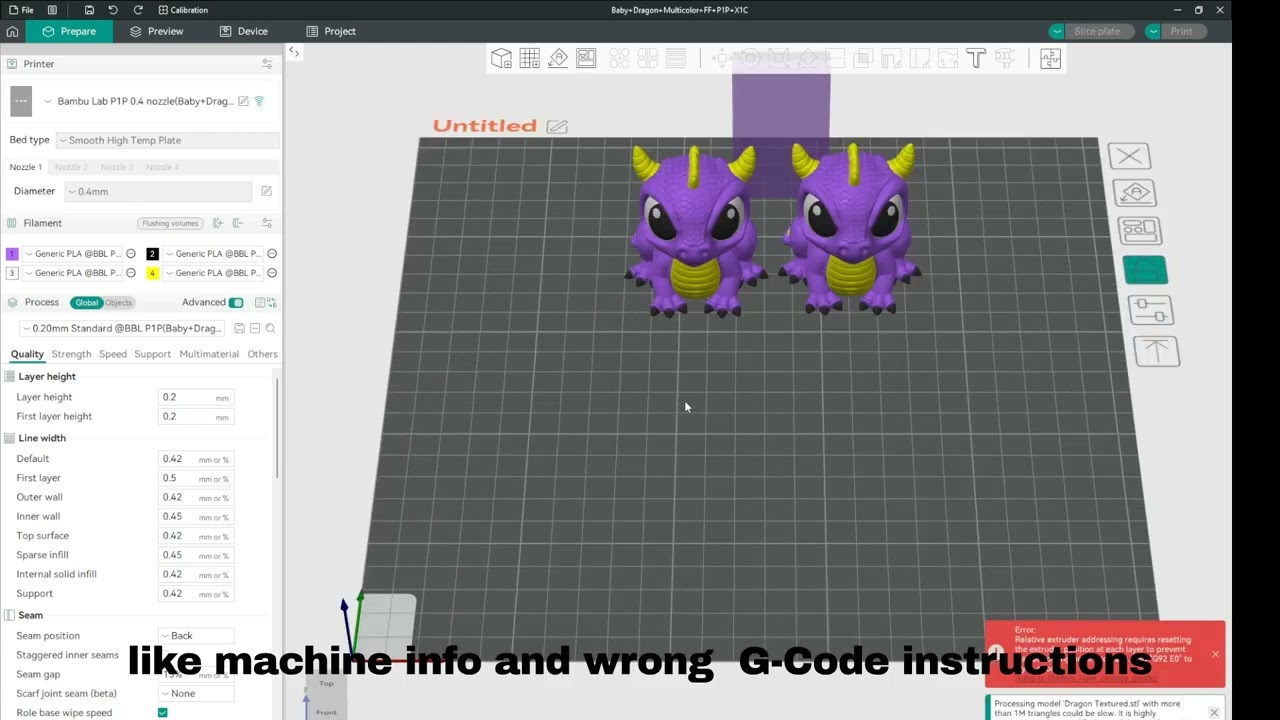
Makerworld is full of fantastic 4-color models, but 3MF files are set up for Bambu Lab printers, opening them directly can mess up your settings.
Here is a simple workflow to print them easily on the Snapmaker U1:
The Trick: Do NOT use “Open Project.” If you do this, Orca will import the original printer model (usually a Bambu) and its specific G-Code, which can cause errors or crashes on your Snapmaker.
Instead, do this:
Go to File → Import → Import 3MF/STL.
This loads only the model geometry and the color painting data, keeping your U1 machine settings intact.
Simply map the imported colors to the filaments you have loaded in the U1.
Slice and print!
I made a short video showing the process if you want to see it in action
Very good advice! We already saw one print disaster from a user elsewhere due to settings getting over written from loading a 3mf. Poor fella ran it multiple times, too.
I’ve actually also had good luck loading the full 3mf, then toggling the printer, print, and material profiles back to all the ones for the U1. After inspecting what settings they used on another printer.
No its not… Orca has some extra advanced features, which to be honest with you I have no idea what they even are. I just have Bambu printers and like Bambu Studio.
Bambu Studio is actually Grandpa of SnOrca (Snapmaker Orca - SO), SO is a fork of Orca Slicer - OS, OS is a fork of Bambu Studio, which means Orca uses Bambu Studio as its base code. Bambu Studio itself is originally based on PrusaSlicer, and all these slicers share a common ancestry from the open-source Slic3r project. Orca Slicer builds upon this foundation by adding its own features and enhancements.
Thanks - i did not even know that this is NOT the usualy way - lol - i never tried to open the file, if i read you post now i cant figure out the reason
Thank you very much for this tip. I have printers from 3 different makers and always just delt with making the manual changes, or having the printer tell me the gcode is wrong.
I created my account here just to say thank you for this. t was really confusng to me why I couldn’t figure out how to import the geometry AND the colors without the machine profile.
Now, if only we had somewhere that consistently supported U1 profiles on these models.
Instead of going to File > Import > Import> File Selection, it’s better to use the button on the upper panel in prepare mode or use the hotkey Ctrl + I. less actions
There is a better way to do this in Orca Slicer and Snapmaker Orca. You can use the ‘Open in Bambu Studio’ button. Go to Preferences, scroll down, and change the Load behavior from ‘Ask when relevant’ to ‘Always ask’.
Remember. To use ‘Open in Bambu Studio,’ you first need to associate Bambu Studio with OrcaSlicer or Snapmaker Orca. This also works for Printables and Cura.
Now, when you open a project, it will ask if you want to import geometry only or open it as a project. Select ‘Import geometry only’ and you’re all set.
I don’t get it. When I choose “Import" it always changes printer model (to e.g a Bambu printer). Importing does not only load model and colors. What am I doing wrong?